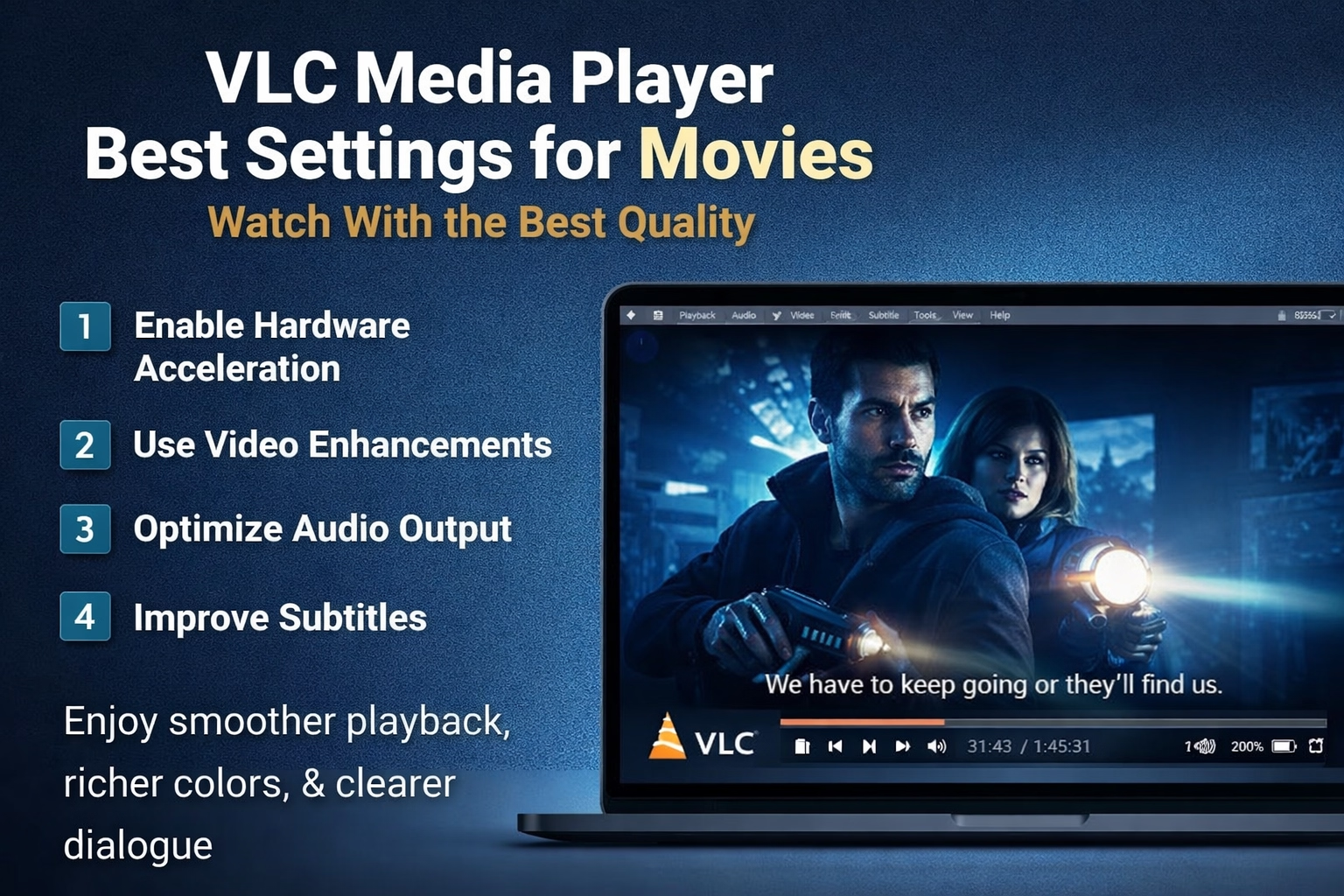
VLC Media Player is one of the most popular and powerful free media players available today. It supports almost every video format, runs on multiple platforms, and offers deep customization options.
However, many users never adjust VLC’s settings—missing out on smoother playback, better colors, clearer audio, and a more cinematic movie-watching experience.
In this guide, you’ll learn the best VLC Media Player settings for watching movies, whether you’re playing HD, 4K, or high-bitrate video files on a PC or laptop.
1. Enable Hardware Acceleration for Smooth Movie Playback
Hardware acceleration allows VLC to use your GPU instead of only the CPU, reducing lag, stuttering, and dropped frames—especially when playing 4K, HEVC, or high-bitrate videos.
How to Enable Hardware Acceleration
- Open VLC

Go to Tools > Preferences

Select Input / Codecs

- Find Hardware-accelerated decoding
- Set it to Automatic
- Click Save and restart VLC
This single setting can dramatically improve performance on modern systems.
2. Improve Video Quality with Filters and Enhancements
VLC includes built-in video filters that can enhance clarity, brightness, and color depth—especially useful for older or poorly encoded movies.
Recommended Video Enhancement Settings
Play any movie
 Go to Tools > Effects and Filters
 Open the Video Effects tab
Apply these subtle adjustments:
Brightness: slight increase if the video looks dark
- Contrast: +10 to +15 for richer visuals
- Saturation: +10 for deeper colors
- Sharpen: 0.10 – 0.20 for added clarity
Avoid extreme values—small tweaks give the most natural results.
3. Enable Deinterlacing (Important for Older Movies & TV Shows)
Interlaced videos often appear jagged or blurry. Deinterlacing smooths motion and improves image quality.
How to Enable Deinterlacing
- Play the video
- Right-click the screen
- Go to Video > Deinterlace > On
- Set Deinterlace Mode to Yadif (best quality)
This is especially useful for older DVDs and TV recordings.
4. Optimize Audio Settings for Better Movie Sound
Great visuals need great audio. VLC’s audio tools allow you to improve dialogue clarity, bass response, and overall sound balance.
Recommended Audio Setup
 Go to Tools > Effects and Filters
 Open the Audio Effects tab
 Enable Equalizer
You can:
Select the Movie preset, or
Manually boost:
- Bass slightly
- Voice frequencies (1k–3k Hz) for clearer dialogue
You may also increase VLC’s maximum volume up to 200%, but use this carefully to avoid distortion.
5. Choose the Best Video Output Module
The correct output module can fix lag, sync issues, and display problems.
How to Change Video Output
 Go to Tools > Preferences
 Click All (bottom-left)
 Navigate to Video > Output
Test these options:
- Automatic (default)
- OpenGL Video Output
- Direct3D11 Video Output
Choose the one that works best on your system.
6. Improve Subtitle Quality and Readability
Subtitles are essential for many viewers. Proper styling makes them easier to read without distracting from the movie.
Recommended Subtitle Settings
Go to Tools > Preferences > Subtitles / OSD, then set:
Font: Arial / Roboto / Open Sans
Font size: Larger than default
Outline thickness: 2 or 3
Subtitle color: White
Outline color: Black
This ensures subtitles remain visible even in bright scenes.
7. Sync Subtitles and Audio Easily
If subtitles or audio are out of sync, VLC offers instant keyboard controls.
Useful Shortcut Keys
- H / G → Delay or speed up subtitles
- J / K → Adjust audio delay
This is extremely helpful for downloaded or ripped movie files.
8. Enable Smooth Fullscreen Movie Playback
To avoid interruptions and ensure a cinematic fullscreen experience:
Go to Preferences > Video
Enable:
- Fullscreen
- Disable screensaver
- Always on top (optional)
This prevents pop-ups or system interruptions while watching movies.
Final Thoughts: Is VLC Good for Watching Movies?
Absolutely.
VLC Media Player is far more than a basic video player. With the right settings, it becomes a powerful, smooth, and immersive movie-watching platform—completely free and without ads.
By applying these best VLC settings for movies, you can enjoy:
- Smoother playback
- Better picture quality
- Clearer dialogue
- A more cinematic viewing experience
If you regularly watch movies on your PC or laptop, these settings are highly recommended.