
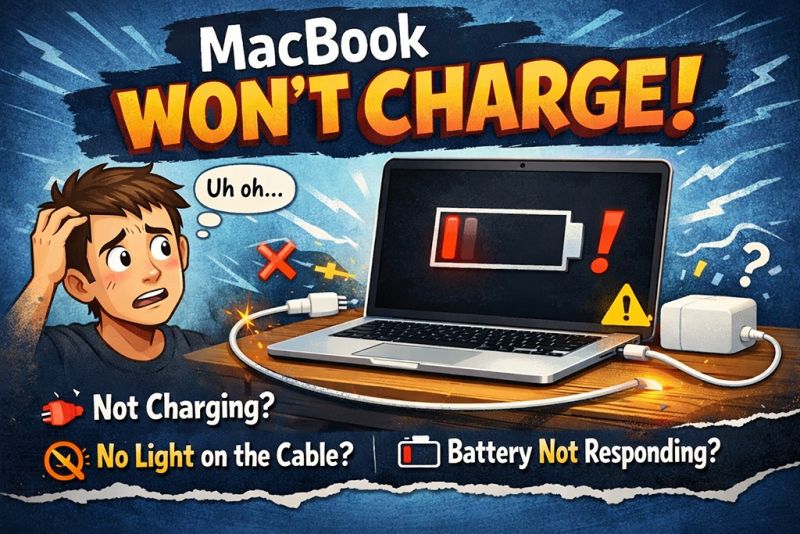
MacBooks are famous for being premium laptops with stable performance and awesome battery life. But what if suddenly your MacBook stops charging? Total nightmare—especially when you are working outside and cannot stay plugged into power all the time.
Before you panic or rush to replace the charger and battery, relax. There are many reasons why a MacBook refuses to charge, and most of them can be fixed easily—either from the hardware side or the software side. Let’s break down the causes and the solutions one by one.
Why Your MacBook Won’t Charge
Here are the most common reasons why a MacBook battery refuses to charge:
- Faulty MagSafe or USB-C charger
- Dirty or dusty charging connector
- Battery cycle count is already too high
- MacBook is overheating
- System errors related to SMC or PRAM
How to Fix MacBook Not Charging
If you’re facing this issue right now, do not rush to a service center yet. Try the following steps first.
1. Check the Charger and Charging Port
Start with the basics. Inspect your charger cable and adapter. Make sure:
- The cable is not torn or broken
- The charger is not burnt or damaged
- Try using another charger if possible (original Apple charger recommended)
Then, check the charging port on the MacBook. Dust, lint, or dirt can block charging. Clean it gently using a toothpick or a small soft brush. Do it slowly and carefully.
2. Check Your MacBook Battery Health
If your battery has reached its maximum cycle count or is already damaged, your MacBook will refuse to charge.
To check battery health:
- Click the Apple logo in the top left corner
- Select About This Mac
- Click System Report
- Go to Power
- Look at Cycle Count and Battery Condition
If you see:
“Replace Soon”
“Service Battery”
Or the cycle count is over 1000
Then the battery needs replacement.
3. Cool Down an Overheating MacBook
If your MacBook is too hot, the system will automatically stop charging to protect the device. This is normal.
Fix:
- Shut down your MacBook
- Leave it for 15–20 minutes
- Let the temperature drop
- Turn it back on and reconnect the charger
Tip: Avoid using your MacBook on beds, pillows, or soft surfaces because they block airflow.
4. Reset SMC (System Management Controller)
SMC controls power, battery, cooling, and charging behavior. Resetting it often fixes power problems.
For Intel MacBooks:
- Shut down your MacBook
- Press and hold Shift + Control + Option + Power button for 10 seconds
- Release
- Turn your MacBook back on
- For Apple Silicon (M1/M2/M3):
Simply shut down your MacBook for 30 seconds and turn it back on. The system resets SMC automatically.
5. Reset PRAM (Optional but Sometimes Helpful)
PRAM stores system settings like sound, display, boot settings, and some hardware info. Sometimes faulty PRAM can cause weird system behavior.
How to reset PRAM:
- Shut down your MacBook
- Press and hold Option + Command (⌘) + P + R
- Turn on your MacBook while still holding the keys
- Hold for about 20 seconds
- Release the keys after the Apple logo appears twice or you hear the startup sound twice
Still Not Working? Time to Replace the Charger or Battery
If none of the fixes above work, there’s a high chance the hardware is damaged.
You may need to:
- Try a different original charger
- Visit an authorized Apple Service Center
- Estimated cost ranges:
- Original MagSafe charger: around $39
- Battery replacement: around $100-$130
(Depends on MacBook model)
Final Words
Those are the best and most effective solutions to fix a MacBook that won’t charge. Before panicking or spending money on new parts, make sure you try all the troubleshooting steps above.
Have a similar experience or still stuck? Drop your question in the comments. Hopefully this guide helps you keep your MacBook running strong.