
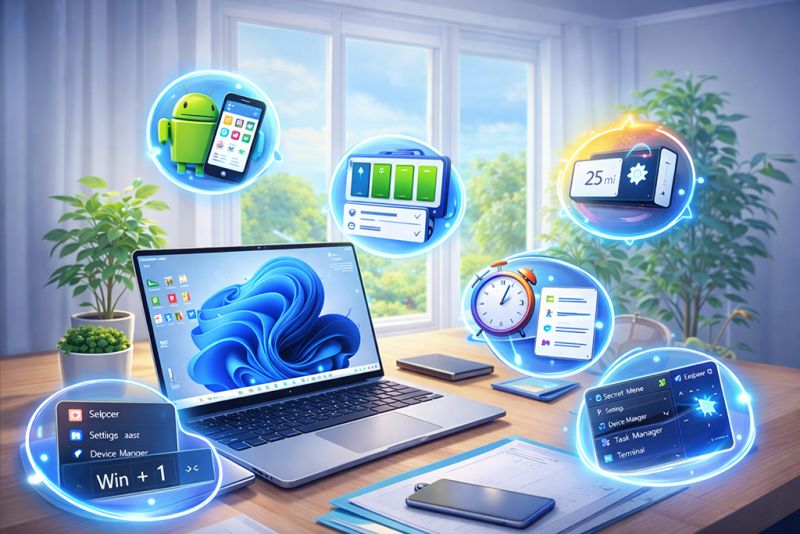
Since its release in October 2021, Windows 11 has come with a fresh modern design and more efficient performance. Improved memory management and smarter handling of background processes make it faster and smoother to use.
However, many users still feel confused because Windows 11 looks and works differently than previous versions.
Here are several powerful but often hidden features that can make your Windows 11 experience much better.
1. Run Android Apps Directly on Windows 11
In older Windows versions, you needed third-party software to run Android apps.
Now, Windows 11 allows you to run Android applications natively.
What you need to do:
- Make sure your Windows is updated to version 22110.1402.6.0 or higher.
- Open Control Panel → Programs → Turn Windows features on or off.
Enable:
- Virtual Machine Platform
- Windows Hypervisor Platform
- Download and install Amazon Appstore.
- Now you can download and run Android apps on your PC—just like on a phone.
Imagine playing your favorite mobile games or using Android apps directly on your laptop. Very convenient.
2. Minimize All Windows Except the Active One (Shake Feature)
- Working with many open windows can be distracting.
- Windows 11 has a feature to quickly minimize everything except the window you’re currently using.
How to enable it:
- Go to Settings.
- Select System.
- Click Multitasking.
- Enable Title Bar Window Shake.
How to use it:
- Click and hold the active window’s title bar.
- Shake your mouse up and down quickly.
- All other windows will minimize instantly.
- A simple trick to keep your focus.
3. Open Pinned Programs Using Keyboard Shortcuts
If you pinned apps to your Taskbar, you can open them without a mouse.
Simply press:
- Windows Key + 1 for the first pinned app
- Windows Key + 2 for the second
and so on…
This makes multitasking much faster.
4. Focus Sessions – Stay Productive
If you struggle to stay focused, Focus Sessions can help.
What it does:
- Sets timers
- Tracks progress
- Helps reduce distractions
- Shows progress via desktop widgets
How to use it:
- Open Alarms & Clock.
- Select Focus Sessions.
- Set your focus duration and start.
Perfect for studying, working, or managing tasks.
5. Access the Hidden Start Menu
Windows 11 has a “secret” Start Menu that gives fast access to important tools like:
- Command Prompt
- Control Panel
- Task Manager
- Device Manager
- Disk Management
and more…
How to open it:
- Press Windows Key + X, or
- Right-click the Start / Windows Icon
Very useful for advanced and quick access.
6. Screen Time & Battery Usage Monitoring
Windows 11 helps you understand how you use your laptop and how your battery is consumed. This is helpful for managing battery life and digital balance.
How to check it:
- Open Settings.
- Go to Power & Battery.
- Expand Battery Usage.
You’ll see:
- How long your device has been used
- Which apps use the most battery
- Battery activity in the last 24 hours
Final Tips
Always update Windows regularly to enjoy new features.
Explore available tools to improve productivity.
Windows 11 continues to receive improvements, so new features may appear over time.
Now you know some of the most useful hidden features in Windows 11. Try them and make your daily computer use easier and more efficient.