
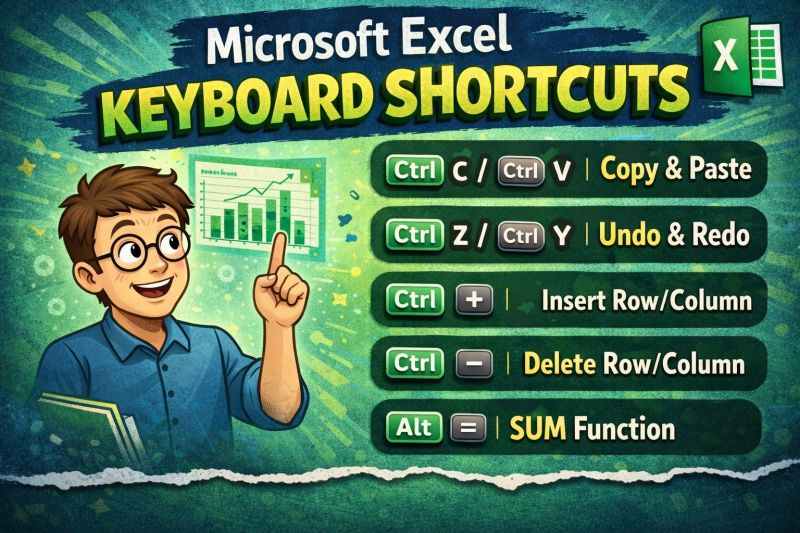
Almost everyone relies on Microsoft Excel for work, school, business, and daily tasks. But here is the big question: are you really using Excel to its full potential? Many users still work the slow way—clicking around with the mouse—without maximizing powerful keyboard shortcuts.
Keyboard shortcuts make your workflow faster, smoother, and way more efficient. The problem? Most people forget them because there are so many. So, to help you level up, here is a complete list of 78 important Excel keyboard shortcuts that will make you look like an Excel ninja.
These shortcuts were tested on Microsoft Office 2021 (Windows). If there are slight differences in older versions, feel free to adjust or drop a comment.
Let’s level up your Excel game.
🔥 78 Essential Excel Keyboard Shortcuts
➤ Navigation Shortcuts
Arrow Keys — Move cell by cell
Ctrl + Arrow Keys — Jump to data edges
Home — Go to beginning of row
Ctrl + Home — Go to A1
Ctrl + End — Go to last used cell
Page Up — Scroll up one screen
Page Down — Scroll down one screen
Alt + Page Up — Scroll left one screen
Alt + Page Down — Scroll right one screen
Ctrl + Page Up — Previous sheet
Ctrl + Page Down — Next sheet
Tab — Move right
Shift + Tab — Move left
Enter — Move down
Shift + Enter — Move up

➤ Selection Shortcuts
Shift + Arrow Keys — Select cells
Ctrl + Shift + Arrow Keys — Select to data edge
Shift + Space — Select entire row
Ctrl + Space — Select entire column
Ctrl + Shift + Space — Select whole sheet
Ctrl + A — Select region / entire sheet
Ctrl + Click — Multi-select cells
Ctrl + Backspace — Return to active cell

➤ Workbook & File Shortcuts
Ctrl + N — New workbook
Ctrl + O — Open workbook
Ctrl + S — Save
F12 — Save As
Ctrl + P — Print
Ctrl + F4 — Close workbook
Ctrl + W — Close window

➤ Editing Shortcuts
F2 — Edit active cell
Alt + Enter — New line in same cell
Ctrl + D — Fill down
Ctrl + R — Fill right
Ctrl + Enter — Fill selected cells
Ctrl + ; — Insert current date
Ctrl + Shift + ; — Insert current time
Ctrl + ` — Show/Hide formulas
Alt + = — AutoSum
Ctrl + K — Insert hyperlink
Ctrl + Z — Undo
Ctrl + Y — Redo
F4 — Repeat last action

➤ Formatting Shortcuts
Ctrl + 1 — Format Cells
Ctrl + B — Bold
Ctrl + I — Italic
Ctrl + U — Underline
Ctrl + Shift + $ — Currency format
Ctrl + Shift + % — Percentage format
Ctrl + Shift + # — Date format
Ctrl + Shift + @ — Time format
Ctrl + Shift + ^ — Scientific format
Ctrl + Shift + ! — Number format
Ctrl + Shift + ~ — General format
Ctrl + Shift + & — Add border outline
Ctrl + Shift + _ — Remove border
Ctrl + Q — Quick Analysis

➤ Rows, Columns & Sheet Structure
Ctrl + Shift + + — Insert row/column
Ctrl + - — Delete row/column
Ctrl + 9 — Hide row
Ctrl + Shift + 9 — Unhide row
Ctrl + 0 — Hide column
Ctrl + Shift + 0 — Unhide column
Alt + H, O, I — AutoFit column width
Alt + H, O, A — AutoFit row height
Shift + F11 — Insert new sheet

➤ Formula & Calculation Shortcuts
Shift + F9 — Calculate active sheet
F9 — Calculate all
Ctrl + Alt + F9 — Recalculate formulas
Ctrl + Alt + Shift + F9 — Rebuild dependencies
Ctrl + Shift + Enter — Legacy array formula
Ctrl + ’ — Copy formula from above
Ctrl + Shift + U — Expand/collapse formula bar

➤ Data & Tools Shortcuts
Ctrl + Shift + L — Toggle filter
Ctrl + T — Create table
Ctrl + H — Replace
Ctrl + F — Find
Shift + F2 — Insert or edit comment
✅ Final Words
Mastering these shortcuts will help you work faster, smarter, and way more efficiently in Microsoft Excel. Whether you are handling data analysis, accounting, office reports, or school assignments, these shortcuts will save you tons of time.
Got more shortcuts to add or want a PDF version? Drop a comment and let’s share knowledge.
Happy Excel-ing!